DOCUMENTATION
B2B Quotes
Request-a-quote, negotiated pricing, per-company credit & Net terms.
Setup
- Install the app and start the 21-day free trial ($79/mo after; billed by Shopify).
- Add the storefront block: Online Store → Customize → open a product page template → Add section → Apps → Request a Quote → Save.
- That's the minimum — buyers can request quotes and you can price, send and convert them. Companies and credit (below) come when you need terms.
The request-a-quote block
The block renders a Request a quote button on product pages. It opens a dialog where the buyer enters email, name, quantity and a note (target price, delivery needs). Submitting confirms with the quote number and closes. If the buyer is logged in, the quote is attributed to them — and to their company, which is what per-company credit keys on.
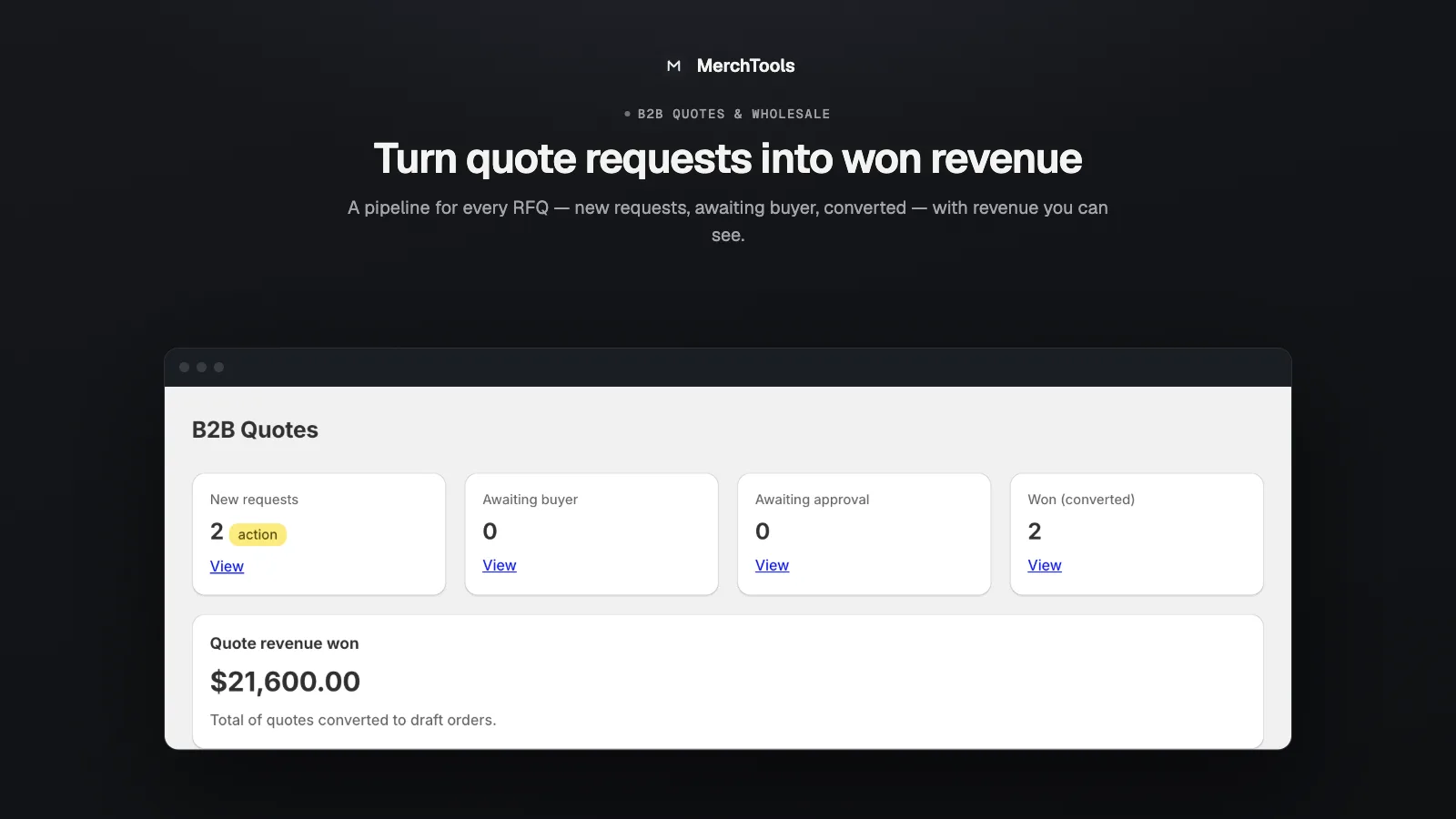
Price, send & convert quotes
- Open the quote from Quotes. Each line shows the catalog (list) price.
- Type the negotiated per-unit price in the "Quoted price" column — leave a row blank to keep list price — add an optional note, and click Send quote.
- The buyer accepts in their customer account (or you click Mark accepted after agreeing over the phone — any price edits on screen are saved with it).
- Click Create draft order. The draft order carries each negotiated price as a per-unit discount, so the total is exactly quantity × quoted price. Use Shopify's Send invoice on the draft order to collect payment.
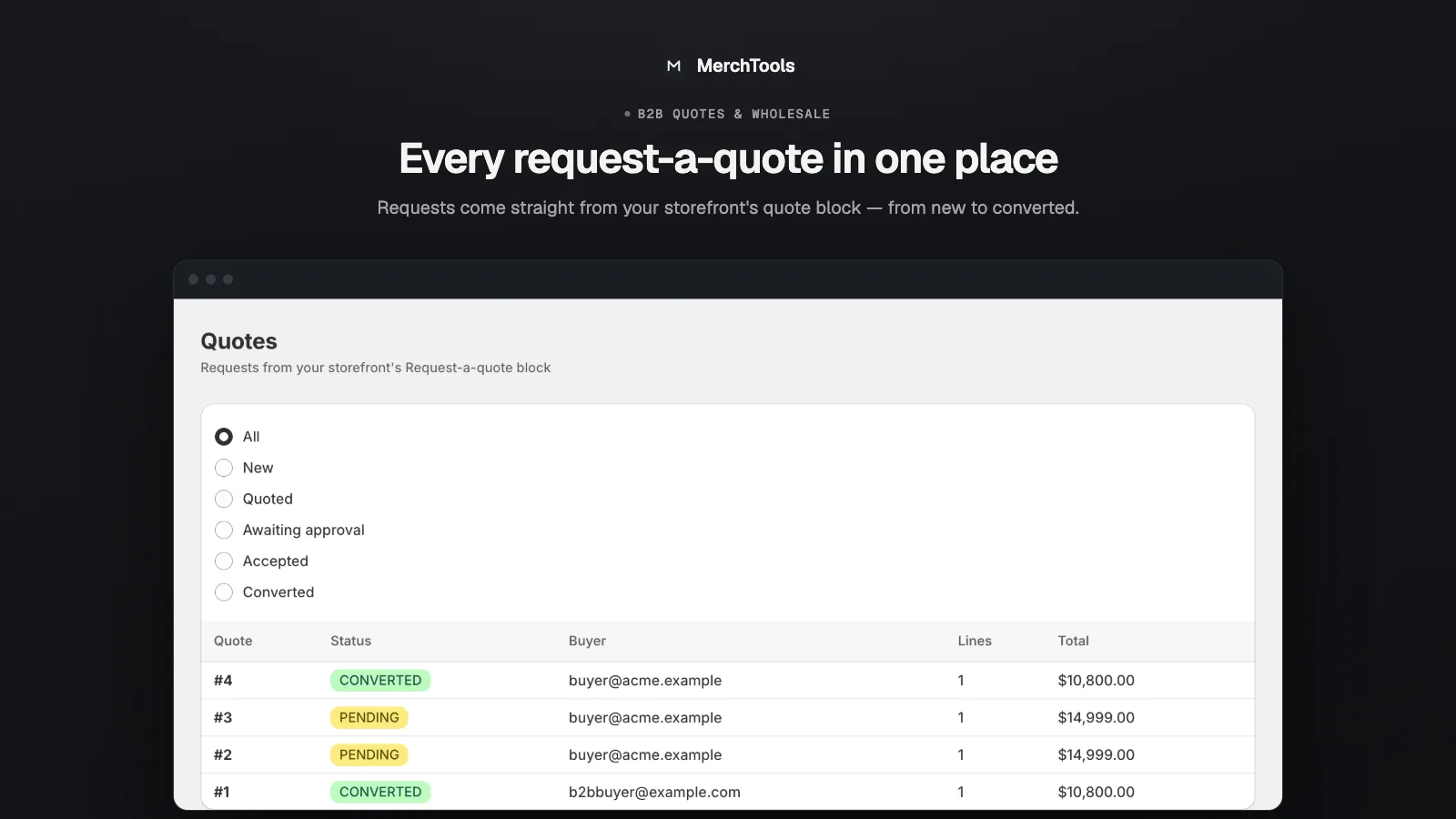
The buyer portal
Buyers see their quotes under My Quotesin Shopify's customer accounts — statuses, negotiated prices, and an Acceptbutton on quotes you've sent. Login is Shopify's native passwordless email code; no extra accounts or passwords to manage.
Credit limits & Net terms
Credit is tracked per company (Shopify's native B2B companies):
- Create the company in Shopify (Customers → Companies) with the buyer as a contact.
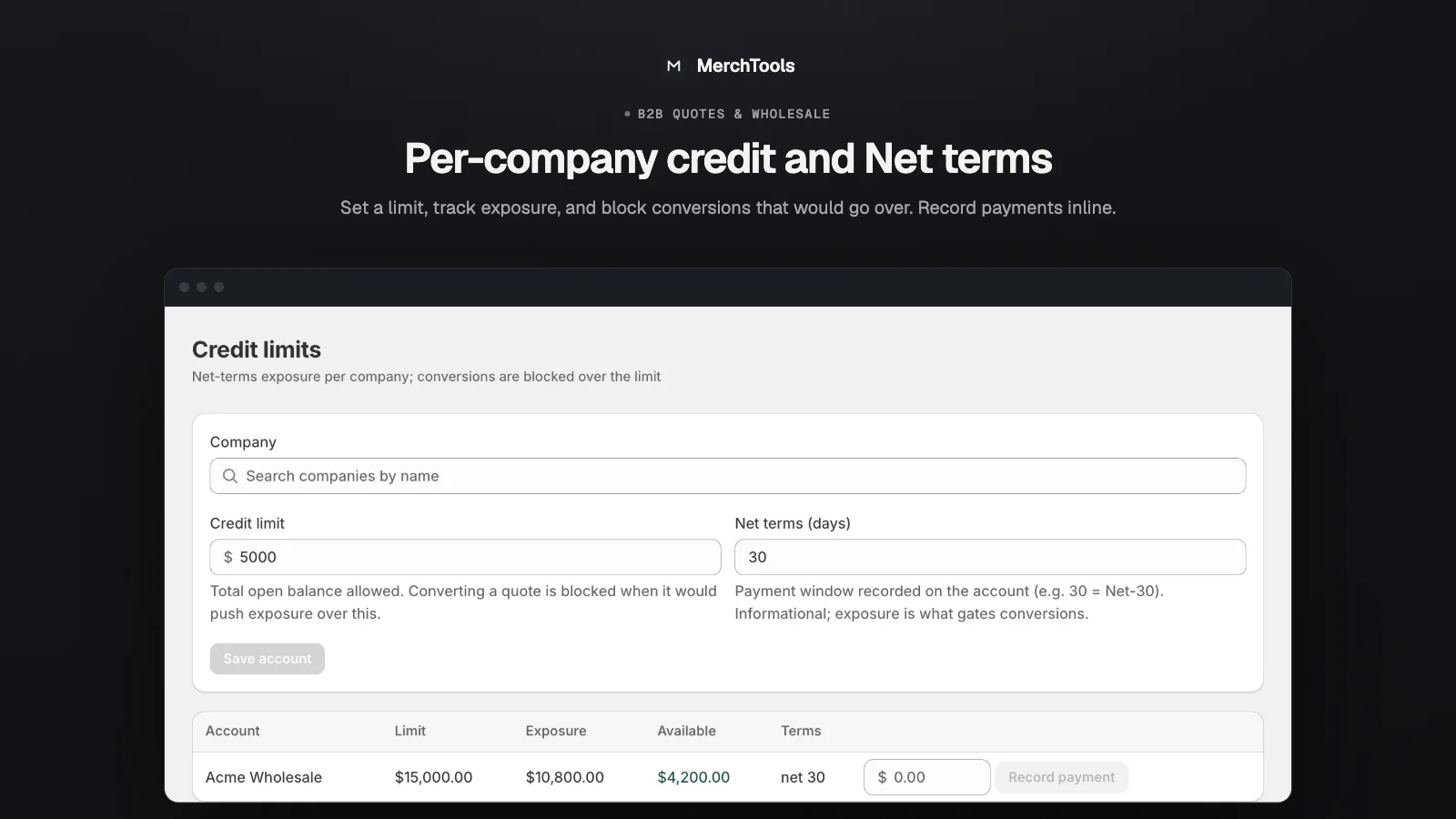
- In the app open Credit limits, find the company and set a limit and terms, e.g. $5,000, Net 30.
- From then on, converting a quote checks the company's exposure. A conversion that would exceed the limit is blocked with the available credit shown.
- Each successful conversion posts a charge to the company ledger. When the invoice is paid, click Record payment — exposure drops and credit frees up.
CSV reorder & approvals
- CSV reorder — buyers (or you) upload a SKU + quantity list and it becomes a quote in one step. SKUs are resolved against your catalog automatically.
- Approvals — set a threshold per company (e.g. orders over $10,000) and an approver email; quotes over the threshold wait for the approver's sign-off before they can be converted.
Troubleshooting
- A quote has no company attached. The buyer wasn't logged in on the storefront when submitting. Have them log in (storefront "Log in" → email code) and resubmit; credit checks then apply.
- "Credit limit exceeded" on conversion. Working as intended — raise the company's limit or record a payment to free exposure, then convert again.
- The draft order total doesn't match the quote. Check the quote's per-line quoted prices were saved (they show in the read-only view after sending). The draft order applies them per unit.
- The storefront button doesn't show. Confirm the "Request a Quote" app section was added to the product template you actually use, and the theme was saved.
Stuck or found a bug? Email support@merchtools.net — you talk directly to the developer.