DOCUMENTATION
Thank You Toolkit
Coupons, surveys & upsells for your new thank-you page.
Requirements
Thank You Toolkit works on Shopify's new Thank-you and Order-status pages(checkout extensibility) — the pages every store is migrating to as legacy order-status scripts are retired. If your store is on the new pages (all stores created recently are), you're ready. No theme edits and no code are needed at any point.
Install & choose a plan
- Install the app from the Shopify App Store.
- Pick a plan on first open: Free (up to 50 orders a month, MerchTools branding line) or Pro ($14.99/mo, 7-day free trial). Billing is handled entirely by Shopify.
- You land on the dashboard — block settings live here, and the survey results arrive here too.
Add blocks in the checkout editor
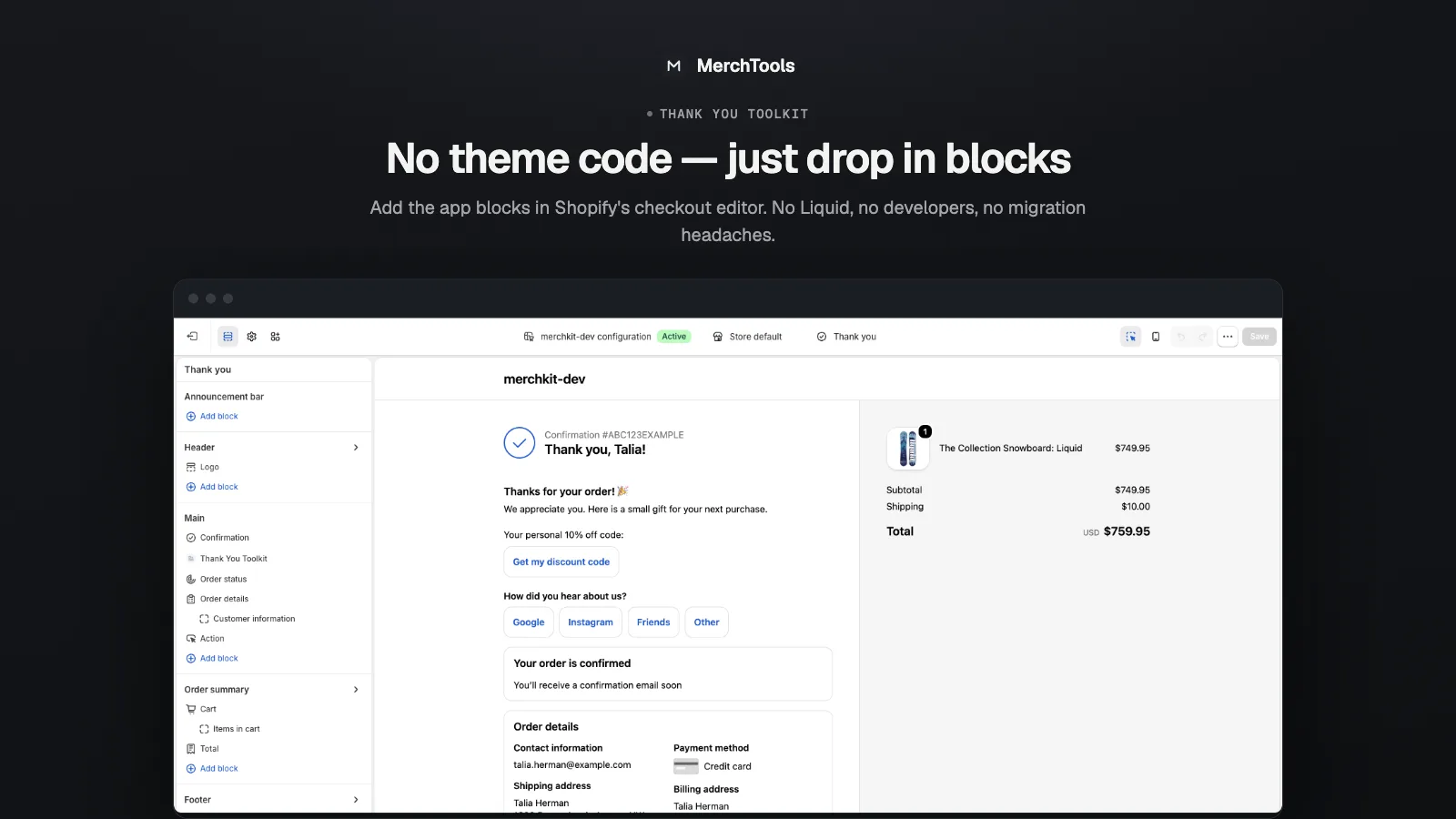
Blocks are added where Shopify keeps all post-purchase customization — the checkout editor:
- In your Shopify admin go to Settings → Checkout and click Customize on your published checkout profile.
- In the top-center page selector, switch from Checkout to Thank you.
- Click Add app block in the left sidebar and pick a Thank You Toolkit block: Message, Coupon, Survey or Upsell.
- Drag it where you want it, then Save. Repeat on the Order status page if you want the blocks there too.
Configure the coupon
In the app dashboard, open Coupon settings:
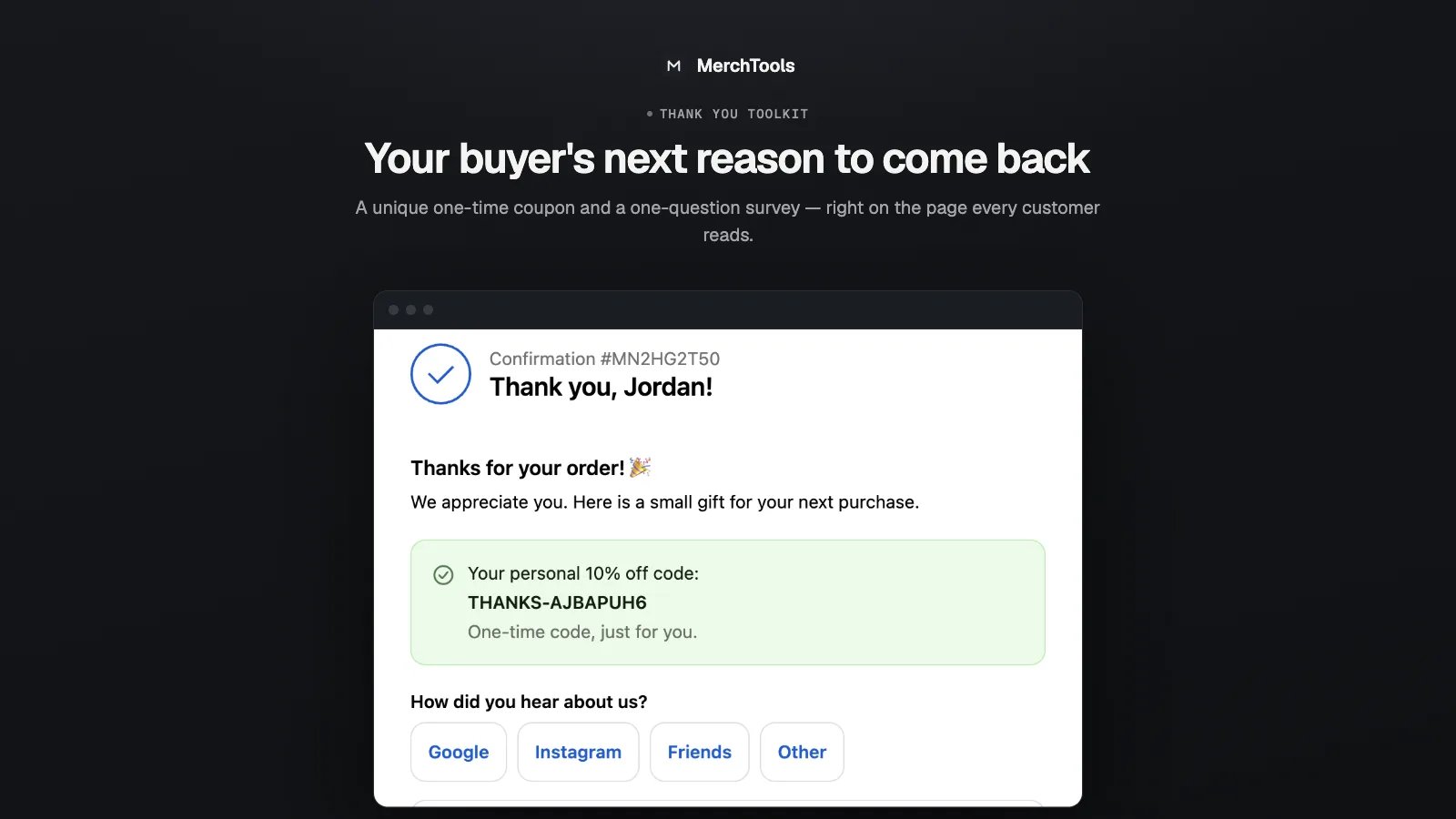
- Unique codes — each order mints a personal one-time code (e.g.
THANKS-A1B2C3D4). Codes are generated server-side and registered as real Shopify discount codes, so they show up under Discounts in your admin and can't be tampered with. - Static code — every buyer sees the same code you choose.
- Percent off & prefix — set the discount percentage and the code prefix to match your brand.
Each order can mint at most one code — page refreshes never create duplicates. Minted codes and their status are listed in the dashboard.
Configure the survey
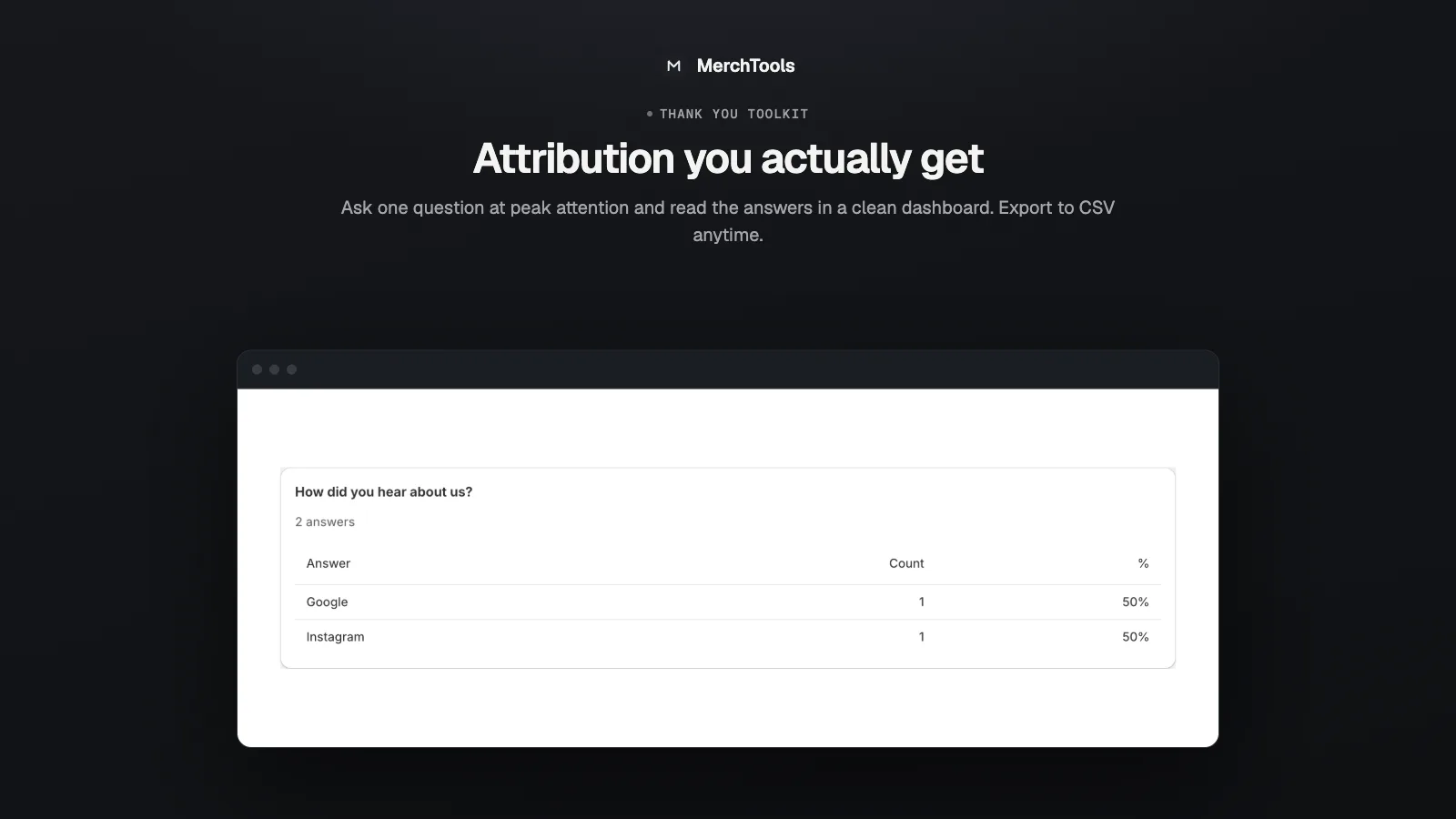
Open Survey settings, write one question ("How did you hear about us?") and its answer options. Answers are recorded once per order and stream into the results dashboard, where you see counts per option. On Pro you can export results as CSV.
Free vs Pro
- Free — all block types, up to 50 coupon mints + survey answers per calendar month, a small "Powered by MerchTools" line on the blocks.
- Pro ($14.99/mo, 7-day trial) — unlimited volume, no branding line, survey CSV export.
Upgrade from the Planpage in the app — it opens Shopify's own subscription page, and the upgrade applies the moment you approve it.
Troubleshooting
- The block doesn't appear on the Thank-you page. Check it was added to the published checkout profile (not a draft), on the Thank you page specifically — the Order-status page is configured separately.
- The block is there but empty. Its settings are empty — set the coupon percent / survey question / message text in the app dashboard.
- "Could not create your code" on the free plan. You've likely hit the 50-per-month free limit. It resets on the 1st, or upgrade to Pro to lift it immediately.
- A shopper answered the survey twice? Not possible — answers are keyed to the order, one per order.
Stuck or found a bug? Email support@merchtools.net — you talk directly to the developer.